Learn more

Club Partners support

I'm a Club partner
How to activate your account
1. Go to the platform you want to log in to.
2. Enter your email address and click ‘Next’ (use the same email you currently use for all Les Mills correspondence).
3. Click set password and wait for a login email to be sent (please note, this will only be sent if you’re an existing Les Mills partner).
4. Check your inbox, open the login email and set your password.
5. You’ll now be logged in – and this login will give you automatic access to any new Les Mills platforms in the future.
FAQ's
You asked.
We answered.
If you’re an existing Les Mills partner you can access Marketing Studio, Les Mills Connect and other exciting new digital platforms as they become available.
Simply follow the log-in steps, and if you have any issues get in touch with your Les Mills contact.
Digital Support Club partner key info
This one login gives you access to Marketing Studio, Les Mills Connect (if available in your region) and down the track, it will open up access to more exciting digital developments that are currently in the pipeline.
Digital Support Club partner key info
By using central authentication, we can easily give you access to Les Mills tools and support including Marketing Studio and any future tools including Les Mills Connect and Learning Studio– using just the one login. When you use this unique login you’ll always get a personalized experience that’s unique to your role.
Digital Support Club partner key info
We want to give you a personalized experience and secure access, which is why you need your own unique login. Entering your existing shared Club Portal login will not work. You will have received an email to your individual email account inviting you to set up your account following a personal link. If you do not have access to that email, follow the steps above and reset a password for your personal individual email.
Digital Support Club partner key info
It’s easy, simply reach out to your Les Mills team.
Digital Support Club partner key info
Follow the steps above to reset your password. The link expires after three days. If you are seeing an invalid link message displayed, please contact your Les Mills representative.
Digital Support Club partner key info
Virtual support

I'm a Club partner using Virtual
Aleady running virtual classes and need help?
1. Check out our Frequently Asked Questions below to see if they solve your problem.
2. Our support desk is available 24/7. Drop us a line and we’ll be happy to help.
FAQ's
You asked.
We answered.
- Open the App Store on your iPad
- Click on the ‘Updates’ icon in the menu
- All of your pending updates will be listed – click on the Virtual App icon to download the latest version
Please note:
- You need internet access to update the App
- The App cannot be open and playing when you update it, so make sure you run the update outside of any scheduled classes
- If you have more than one iPad, you’ll need to update each of them separately
Digital Support Virtual
The LES MILLS Virtual Scheduler lets you create a Group Fitness schedule using Les Mills programs, as well as personalized or custom gym programs.
Using a mix of virtual and live classes, you can schedule classes via your computer in a studio any time of the day or night.
Digital Support Virtual
Your username can be found in your on-boarding email sent by your LES MILLS Customer Experience Manager.
It can also be found within the Virtual Scheduling tool by navigating to ‘Settings’ and then ‘Club Preferences’.
If you forget your password, click the 'Forgot password. Reset password' link found within the Virtual scheduler. An email will be sent to your registered email address.
Make sure you update your new password on all of your Virtual iPads.
Digital Support Virtual
No. Follow the instructions in your 'Welcome to LES MILLS Virtual' email to activate your account and change your temporary password before logging into the App with your username and new password.
Digital Support Virtual
Firstly, schedule an On Demand slot via the Virtual scheduling tool on your computer. A minimum of 60 minutes is recommended.
Alternatively, toggle ‘Always On Demand’ within the App Device Settings to enable On Demand in any slot where a scheduled class does not take place. A member in your club can now scroll to the CLASSES screen on the Virtual iPad and select a class to play.
Within the CLASSES screen, members can filter by genre, intensity, duration.
It is also possible for members to select their desired language and subtitle options by clicking on the three dots to the bottom right of the App.
A play symbol appears in the center of the image for each class.
Once the member taps the play symbol, there will be a delay of one minute before the class starts to give them time to set up.
Once the class has commenced, the scrub bar provides options to pause the class.
Still, need some help? Watch a demo video of how to play an On Demand class from your iPad.
Digital Support Virtual
- Click on the padlock on the top right corner of the iPad App. Enter your 4-digit admin code to unlock administrative control
- When unlocked, the App will show playback controls for any class that is 'Now Playing' in the bottom right corner of the iPad
- Stop the class that is currently playing
- Navigate to the 'CLASSES' tab, select a class and click the play button to start
Digital Support Virtual
No. This removes all downloaded Virtual content.
Contact the Virtual support team using our online form, or call one of our local support numbers first. A support representative will advise you on the best solution.
Digital Support Virtual
- Log into the Virtual scheduler tool via your desktop at https://uk.lesmillsvirtual.com/virtual/login with your Virtual username and password
- Click on the Settings icon and select 'Manage Devices'
- To the right you will see options to ‘REMOVE DEVICE’. Click on the option that corresponds to the device you would like to remove
- Click the Green button: SAVE CHANGES to process the device unlinking
- Once this has processed, it will take 5 minutes for the APP to become ready for connecting/pairing with your new iPad
- Log in to the iPad App with your Virtual username and password and select your studio from the list and begin setup
Digital Support Virtual
Instructors support
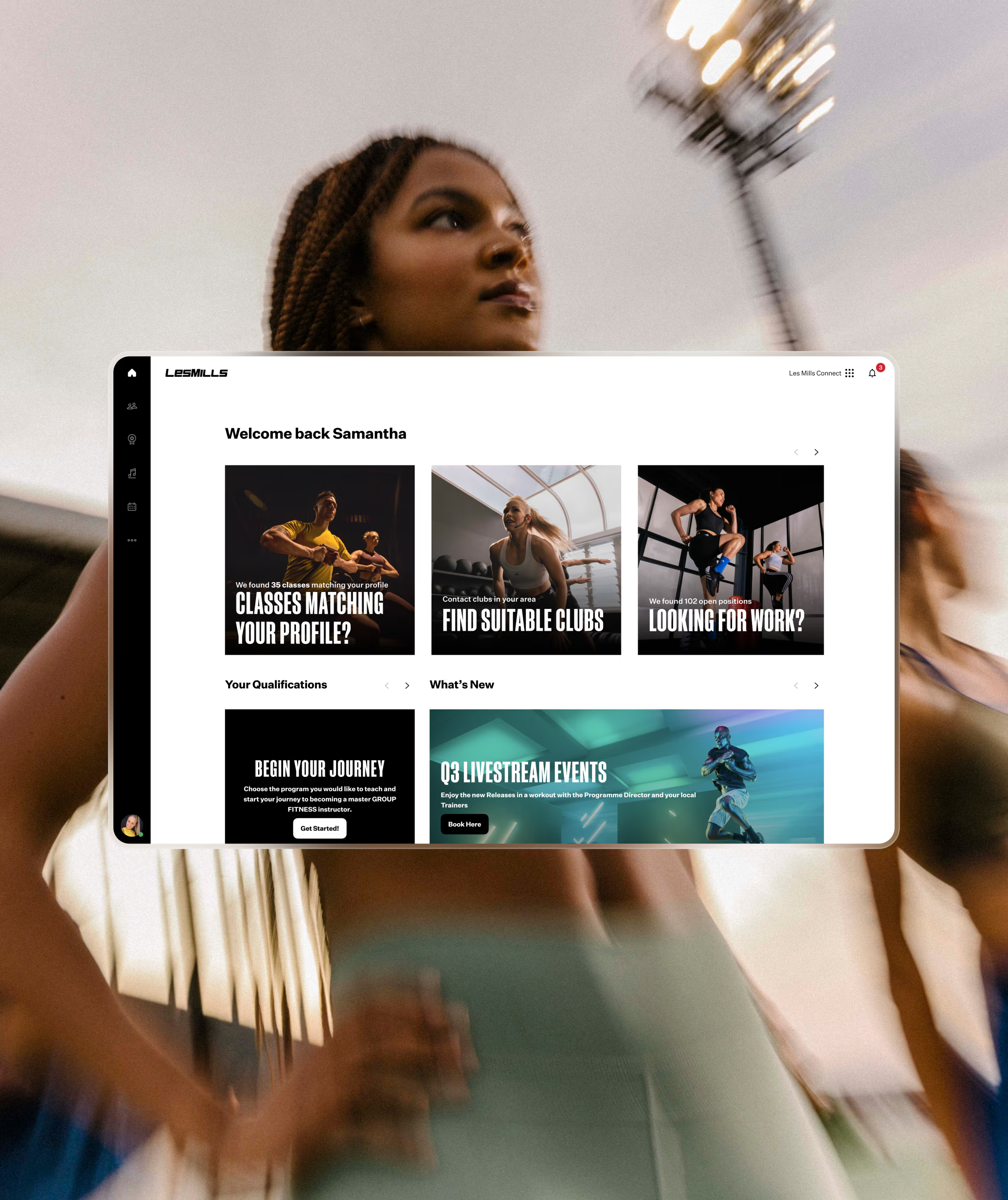
I'm an instructor
How to activate your account
1. Go to the platform you want to log-in to.
2. Use the same details you currently use to log into the Instructor Portal and Releases App.
3. You’ll now be logged in – this login will give you access to any new Les Mills platforms in the future.
If you’re a new Instructor, you will need to create a new account. This login will give you access to any new Les Mills platforms in the future.
FAQ's
You asked.
We answered.
If you’re an current Les Mills certified Instructor you can access Les Mills Connect, the Instructor Portal, the Releases App and any future platforms as they become available in your region. Simply follow the log-in steps, and if you have any issues get in touch with your Les Mills contact.
Digital Support Instructor key info
This is the only login you need. By using central authentication we can easily give you access to all Les Mills tools and support – using just the one login. When you use this unique login you’ll always get a personalized experience that’s unique to your role.
Digital Support Instructor key info
In preparation for launching our new digital platforms, we are making changes to help you seamlessly navigate through the digital platforms. This will be the login screen you will see for all Les Mills digital products going forward, and will also be where you can reset your password if needed.
Digital Support Instructor key info
Go the login page of the platform you want to access (Les Mills Connect). Enter your email address click continue. You will then see the ‘Reset password’ link, click on this and you will receive an email with instructions on how to reset your password.
Digital Support Instructor key info
Your account may have already been created for you. Check your inbox to see whether you have received an email prompting you to set your password. If you’re still having trouble, get in touch with us.
Digital Support Instructor key info
Yes, the login details that you currently use for the Instructor Portal and the Releases App will not change.
Digital Support Instructor key info